
Outlook Express 5 Settings in Mac OS 9
This tutorial will show you how to change the account settings for a POP3 account in Outlook Express 5 for Mac OS 9.
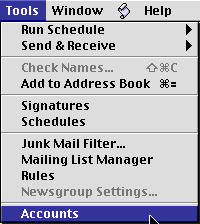
- Click on the "Tools" menu and select "Accounts"
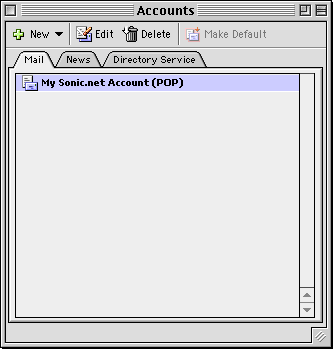
- In the "Accounts" window which appears, Select your email account and click on the "Edit" button.
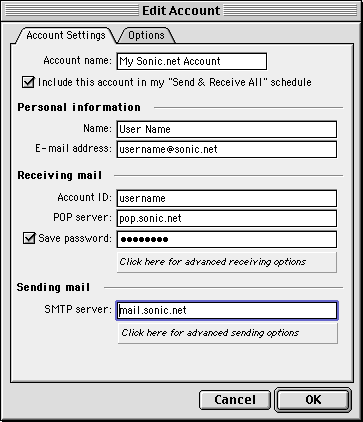
- You will be presented with the "Account Settings" window.
- "Account name" is the name by which Outlook Express refers to these settings.
- "Include this account in my 'Send & Receive All' schedule" should be checked if you want Outlook Express to check for new messages from this account when you click "Send/Receive"
- "Name" is your name as you would like it to appaer when you send email.
- "E-mail address" is your Sonic.net address.
- "Account ID" is your Sonic.net username.
- "POP server" is "pop.sonic.net."
- "Password" is your Sonic.net password.
- If you'd like Outlook Express to remember your password, check the box labeled "Save password."
- "SMTP server" is "mail.sonic.net."
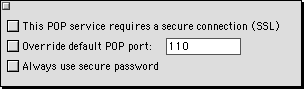
- If you'd like to use advanced receiving options, click on "Click here for advanced receiving options."
- If you'd like to connect via SSL to pop.sonic.net, to prevent your password from being sent in plain text, check the first box.
- Normally, the default POP port is 110. With SSL enabled, the program should use 995.
- Sonic.net does not use Secure Password Authentication, so leave the third box unchecked.
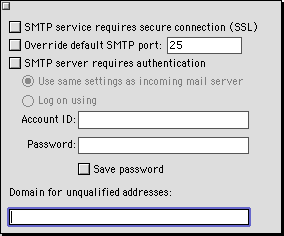
- If you'd like to use advanced sending options, click on "Click here for advanced sending options" in the "Account Settings" tab.
- If you'd like to send mail through mail.sonic.net while you're not actually connected to the Internet via Sonic.net, you can do so by checking the box labeled "SMTP server requires authentication" and either use the same settings as the receiving mail server, or enter them in the appropriate fields.
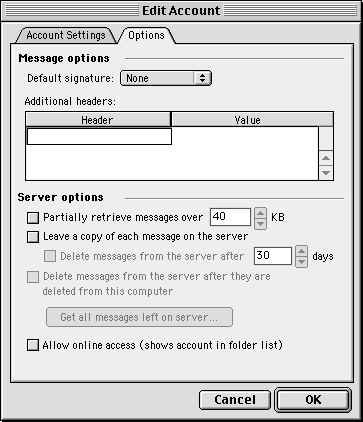
- Click on the "Account Options" tab to set some extra account options.
- "Default Signature" is used for specifying a signature.
- "Additional headers" can be used to add your own custom headers to each email you send.
- "Partially receive messages over XX KB" can be used to keep messages over a certain size from downloading when you check the mail.
- "Leave a copy of each message on the server" is what you should use to do exactly that. Keeping mail on the mail server generally can be abusive of Sonic.net system resouces.
- "Delete messages from the server after XX days" will allow you to have mail deleted after a set number of days. Sonic.net recommends between 7 and 10, if at all.
- "Delete messages from the server after they are deleted from this computer" means that after you delete a message off of your computer, the next time you check this account for new messages, the message you deleted from Outlook Express will be deleted from the mail server.
- "Get all messages left on server" will delete all messages on the mail server which have already been downloaded to Outlook Express in the past.
- "Allow Online Access" does exactly that. It lets you view your messages on the mail server before you actually download them to your computer.
-
That's it, you're done! Just press "Ok" to exit the settings window. For more information about Outlook Express, please see the help documentation found within the program. Back to the Macintosh setup guides.